



In 2026, authors have no shortage of writing apps to choose from. That said, for serious writers, only a select handful are actually helpful. A good writing app should be easy to use, work on whatever devices you choose to write on, keep your work safe, and offer features that help you with the craft.
Today, I’ll be comparing two of the industry’s top dogs: Scrivener and LivingWriter. We’ll look at what both have to offer, their standout features, some pros and cons, and much more. So, without further ado, let’s get into LivingWriter Vs Scrivener.
At a Glance: Key Differences – LivingWriter Vs Scrivener


To understand the core difference between these two apps, let’s look at how they were built:
- Scrivener is the classic heavy-duty power tool. Built as traditional desktop software, it operates like a massive, highly customizable digital binder designed for authors who prefer deep local control and an offline-first workspace.
- LivingWriter is the modern cloud-first studio. Designed as a SaaS platform, it prioritizes a zero-learning-curve setup, automatic cross-device syncing, and built-in plotting frameworks out of the box.
1. Ease of Use & Interface
Scrivener: Feature-Dense with a Learning Curve
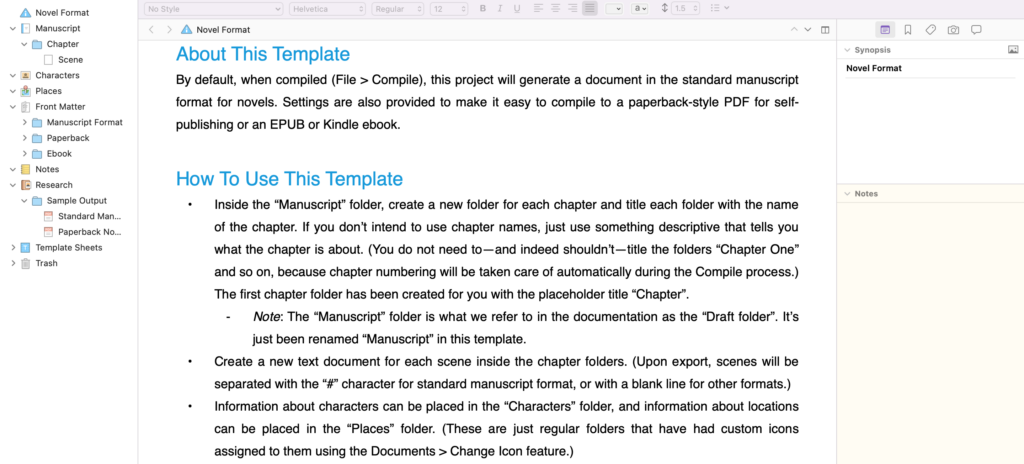
Scrivener is famous for its organizational depth, but that depth does come with a steep learning curve. Opening Scrivener for the first time can feel overwhelming—the interface is dense with sub-menus, inspector panels, and binder structures.
Most authors spend a few days watching video tutorials just to get comfortable organizing a manuscript. However, once mastered, almost every pixel of the interface can be customized to your personal workflow, which is nice.
LivingWriter: Clean, Intuitive, and Modern
LivingWriter takes an intuitive approach. Its editor feels familiar to anyone who has used standard web apps or Google Docs, but with an organized sidebar dedicated to manuscript structure. There are no complex settings menus to navigate before you start typing. This makes it easy for authors who want to start drafting immediately without studying a user manual.
2. Organization, Plotting & Worldbuilding
Scrivener: The Corkboard & Outliner
The centerpiece of Scrivener’s organization is its Corkboard and Outliner views. You can assign index cards to every scene, tag them with custom metadata, label color codes, and rearrange them visually. It allows you to store research files, PDFs, web pages, and image references directly within the manuscript’s project folder.
LivingWriter: Story Templates & Smart Elements
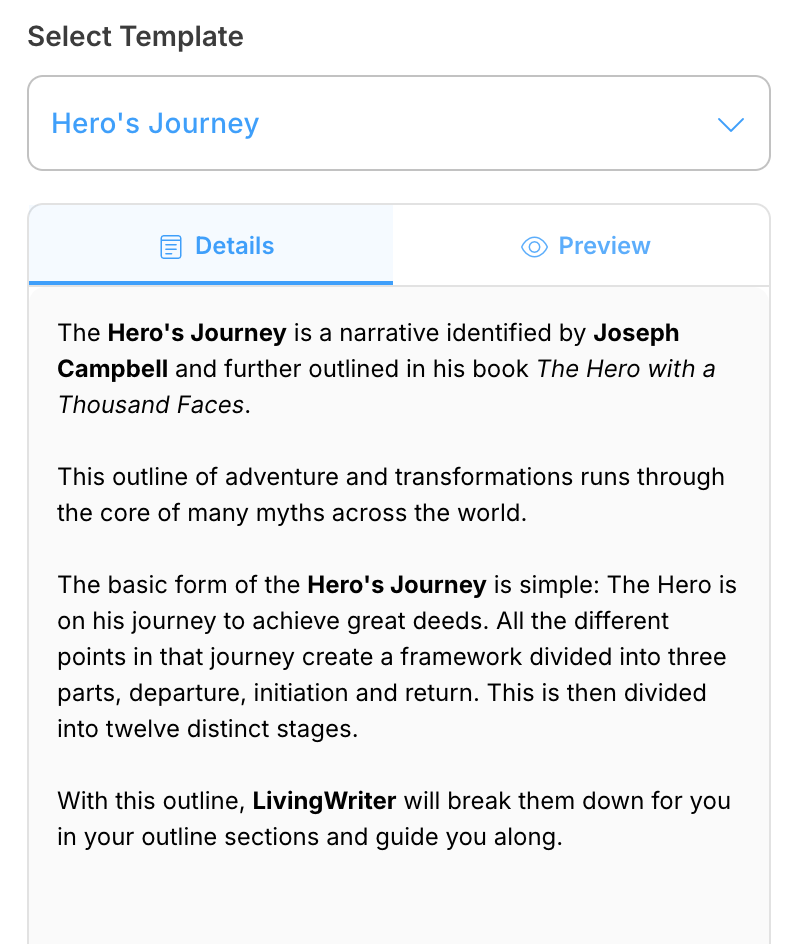
LivingWriter simplifies plotting with pre-loaded Story Outline Templates (such as The Hero’s Journey, Dan Harmon’s Story Circle, and Rom-Com Beats). Instead of creating a board from scratch, you can pick a framework and fill in the plot beats.
It also features Smart Elements, a system that automatically detects character names, locations, and world-building items as you type them, linking them directly to sidebar research cards without requiring manual metadata tagging.
3. Cloud Syncing, Mobile Access & Cross-Platform Support
Scrivener: Third-Party Sync via Dropbox
Scrivener is a locally installed desktop app (macOS and Windows). Cross-device syncing relies on third-party cloud storage—typically Dropbox. If you want to switch between a desktop and an iPad/iPhone, you must set up external folder syncing carefully; opening a project on two devices simultaneously without letting Dropbox sync can cause conflicting file duplicates. There is currently no native Android or web version.
LivingWriter: Native Cloud Access Anywhere
LivingWriter is built natively for the cloud. Work autosaves in real-time, functioning seamlessly across web browsers, iOS, and Android companion apps. You can close your laptop mid-sentence, open the mobile app on an Android phone or tablet, and continue writing right where you left off with zero sync configuration or third-party storage accounts required.
4. Co-Authoring & Feedback Features
Scrivener: Single-Author Focus
Scrivener is primarily a single-author workspace. If you work with a co-writer, editor, or beta reader, you have to export chapters to Word/PDF or swap project files manually. There is no native real-time co-authoring feature built into the app.
LivingWriter: Built-in Collaboration
Because it operates in the cloud, LivingWriter supports live co-authoring and real-time commenting. You can share a manuscript link with an editor or writing partner, allowing them to leave feedback or collaborate directly within the document, similar to Google Docs.
5. Pricing & Value Breakdown
| Feature / Metric | Scrivener | LivingWriter |
| Pricing Model | $59.99 one-time purchase per OS platform | ~$9.99–$14.99/month (Monthly or Annual plans) |
| Free Trial | 30 non-consecutive days of use | 14-day free trial |
| Platform Access | Separate licenses needed for Mac, Windows, iOS | Single account covers Web, iOS, and Android |
| Offline Capability | Full native offline software | Browser caching; best with an active connection |
| Target Audience | Technical plotters & offline power users | Modern fiction authors, plotters & cloud-first writers |
The Verdict: Scrivener vs. LivingWriter
Neither app is universally “better”—they serve entirely different types of writers:
- Choose Scrivener if: You want a traditional one-time purchase, write primarily on a single Mac or Windows desktop, prefer working strictly offline, and want complete control over a complex, database-style manuscript folder.
- Choose LivingWriter if: You want a sleek, modern workspace that works across any device out of the box, prefer pre-built plotting structures and smart character tracking, and want zero-friction cloud syncing without setting up third-party storage.